Are you struggling to figure out how to turn off your Shark Robot Vacuum quickly and easily? You’re not alone.
Sometimes, these smart devices can be a bit tricky when it comes to powering down. Whether you want to save battery, stop cleaning immediately, or just take a break, knowing the right steps can save you time and frustration. Keep reading, and you’ll learn simple, clear instructions to turn off your Shark Robot Vacuum without any hassle.
This guide is made just for you, so you can get control back in no time.
Locate Power Button
Knowing where the power button is on your Shark Robot Vacuum is key to turning it off quickly. This small detail saves time and avoids confusion. The power button controls the main functions and stops the vacuum from running.
Finding the button is easy once you know where to look. It is usually visible and marked with a power symbol. This step is the first in safely powering down the device.
Check The Top Surface Of The Vacuum
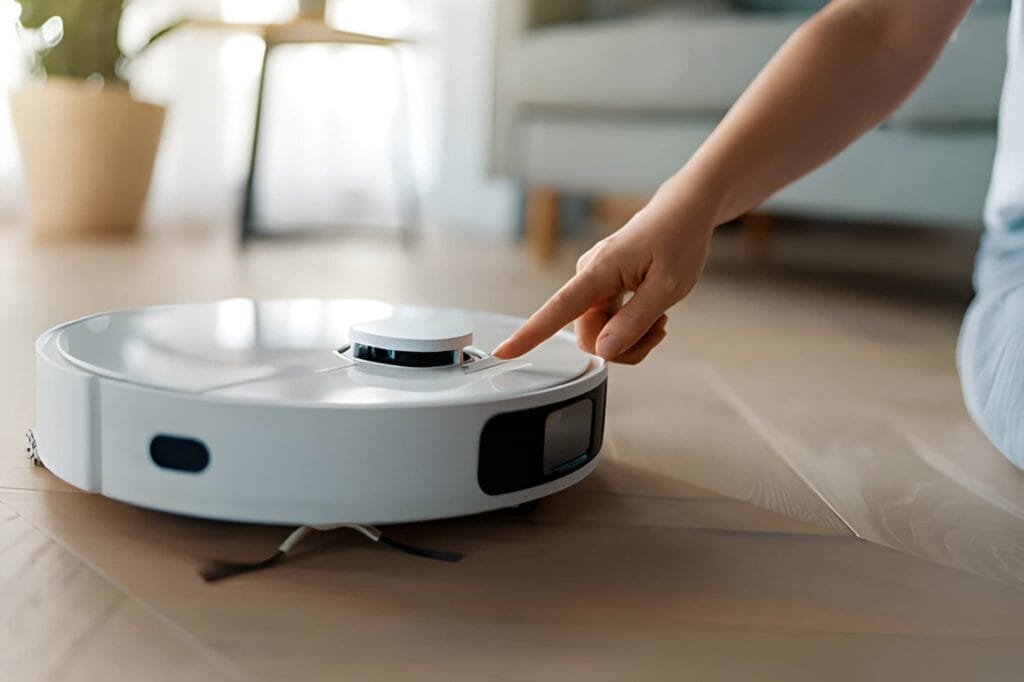
The power button is often on the top of the vacuum. Look near the center or the edge. It may be a small round or oval button. The symbol looks like a circle with a line through it.
Look Near The Display Panel
Some Shark vacuums have a display panel. The power button is close to this panel. It allows you to control settings and start or stop cleaning easily. The display lights up when the vacuum is on.
Inspect The Side Or Edge
On some models, the power button is on the side. Check the edges carefully. It might be hidden under a small flap or cover. Press gently to avoid damage.
Refer To The User Manual
The manual shows the exact location of the power button. It includes pictures and instructions. Keep the manual handy for quick reference. It helps you avoid mistakes during use.
Using The Control Panel
The control panel on your Shark Robot Vacuum lets you manage its functions easily. Using the control panel is the quickest way to turn off the vacuum. It also shows you important information about the vacuum’s status. Understanding the control panel helps you use the vacuum better and keep it working well.
Power Button Functions
The power button on the control panel has simple uses. Press it once to start cleaning. Press it again to pause the vacuum. Hold the power button for a few seconds to turn the vacuum off completely. This stops all vacuum activity and saves battery power. Using the power button is the most direct way to control the vacuum.
Indicator Lights
Indicator lights on the control panel show the vacuum’s current status. A green light means the vacuum is ready or cleaning. A flashing red light signals an error or low battery. Blue lights often show the vacuum is charging. Watching these lights helps you know when to turn off the vacuum or charge it. The lights make operation clear and simple.
Shutting Down Via Mobile App
Shutting down your Shark Robot Vacuum using the mobile app is quick and simple. This method lets you control your vacuum from anywhere in your home. No need to get up or find the power button on the device itself.
Follow easy steps to connect your phone and access power options. This way, you can turn off the vacuum with just a few taps. It helps save battery and keeps your device ready for the next cleaning.
Connecting To The Robot
First, open the SharkClean app on your phone. Make sure your phone is connected to the same Wi-Fi network as the robot. The app will show your robot vacuum on the home screen. Tap on the device icon to connect. Wait a moment while the app links to the robot. You will see the status update once connected.
Navigating To Power Options
After connecting, look for the menu or settings icon. Tap it to open more options. Find the “Power” or “Shutdown” section in the list. Here, you can choose to turn off the vacuum. Press the shutdown button, and the robot will stop and power down. The app will confirm the action on your screen.
Manual Power Off Techniques
Manual power off techniques help you stop your Shark Robot Vacuum safely. These methods work well when the usual controls do not respond. Knowing how to turn off your vacuum manually can save you time and avoid damage. Here are simple steps to power off using two common ways.
Removing The Battery
Locate the battery compartment under your Shark Robot Vacuum. Use a screwdriver if needed to open the cover. Gently remove the battery from its slot. This action cuts power immediately. Wait a few seconds before reinserting the battery. This method fully powers down the vacuum for a reset or storage.
Unplugging The Charging Dock
Find the charging dock where your vacuum rests. Pull the power plug from the wall socket. This stops the dock from sending power to the vacuum. The vacuum will turn off after the battery drains. This technique is useful if your vacuum won’t respond to commands. It also protects the vacuum from power surges.
Troubleshooting Power Issues
Troubleshooting power issues with your Shark Robot Vacuum can save time and frustration. Power problems often stop the vacuum from turning off or on. Knowing how to fix these issues helps keep your device working smoothly.
Unresponsive Robot
If your Shark Robot Vacuum does not respond, check the battery first. A low or dead battery can cause the vacuum to freeze. Place the robot on its charger and wait at least 30 minutes. Try pressing the power button again after charging.
Remove any dirt or debris around the sensors. Dirt can block signals and stop the vacuum from working. Clean the sensors with a soft cloth carefully. Reset the robot by holding the power button for 10 seconds. This can clear minor errors and reboot the system.
Power Button Not Working
If the power button does not work, inspect it for physical damage. Dirt or sticky residue can block the button’s movement. Clean around the button gently with a dry cloth or cotton swab.
Try a hard reset by unplugging the vacuum from the charger. Leave it off for a minute, then plug it back in. Press the power button again to test. If the button still fails, contact Shark customer support for advice.
Safety Tips When Powering Down
Powering down your Shark robot vacuum safely protects the device and your home. Following simple safety tips helps avoid damage and ensures the vacuum works well for a long time. This section shares clear steps to power off your Shark vacuum safely.
Turn Off The Vacuum On A Flat Surface
Always place the vacuum on a flat surface before turning it off. This stops the vacuum from tipping and damaging its parts. A stable surface keeps the vacuum steady while powering down.
Press The Power Button Gently
Use gentle pressure on the power button. Pressing too hard may harm the button or the vacuum’s internal parts. A soft press is enough to switch the vacuum off safely.
Unplug The Charging Dock
Unplug the charging dock after turning off the vacuum. This prevents electrical issues and saves energy. Make sure your hands are dry before unplugging to avoid shocks.
Keep The Vacuum Away From Water
Never power down the vacuum near water. Water and electronics do not mix well. Keep the vacuum away from sinks, tubs, or wet floors during shutdown.
Store The Vacuum In A Safe Place
After turning off, store the vacuum in a dry, cool place. Avoid areas with extreme heat or cold. Proper storage helps keep the vacuum in good condition.
Frequently Asked Questions
How Do I Turn Off My Shark Robot Vacuum Manually?
To turn off your Shark Robot Vacuum manually, press and hold the power button until it shuts down. This stops all cleaning functions immediately and conserves battery life.
Can I Turn Off Shark Robot Vacuum Using The App?
Yes, you can turn off the Shark Robot Vacuum through the SharkClean app. Open the app, select your vacuum, and tap the power off option for remote control.
What Should I Do If Shark Robot Vacuum Won’t Turn Off?
If your Shark Robot Vacuum won’t turn off, try pressing and holding the power button for 10 seconds. If it persists, reset the device or contact customer support.
Does Shark Robot Vacuum Turn Off Automatically?
Yes, Shark Robot Vacuums automatically turn off when the cleaning cycle finishes or the battery runs low. This helps save energy and prolong battery life.
Conclusion
Turning off your Shark robot vacuum is quick and simple. Just press the power button or use the app to stop it. Make sure the vacuum rests on its charging dock to save battery. Always follow these steps to avoid any issues.
This way, your vacuum stays ready for the next clean. Keeping it off when not in use helps protect the device. Now you can easily control your Shark robot vacuum anytime.