Are you staring at your Dyson vacuum wondering which model it is? Knowing exactly which Dyson vacuum you have can save you time, money, and frustration.
Whether you need the right replacement parts, want to buy compatible accessories, or just want to understand your vacuum better, identifying your model is the first step. In this guide, you’ll learn simple, clear ways to tell which Dyson vacuum you own—no tech skills needed.
Keep reading, and you’ll quickly get the answers you need to make your cleaning routine smoother and more efficient.
Locate The Model Number
Finding your Dyson vacuum’s model number is the first step in identifying it. This number helps you know the exact type and version of your vacuum. It makes buying parts or checking warranty easier. The model number is usually on a sticker or plate on the vacuum.
Common Model Number Locations
Dyson places model numbers in a few common spots. Check the bottom of the vacuum near the brush bar. Some models have the number inside the dustbin area. Others place it near the handle or on the back. Look for a small sticker or metal plate. The number is often near the serial number.
Reading The Model Number Format
Dyson model numbers follow a specific pattern. They often start with letters followed by numbers. For example, “DC59,” “V11,” or “Ball Animal.” The letters may indicate the series or design. The numbers often tell the model version or type. Knowing this helps you match your vacuum to manuals or parts lists.
Check The Vacuum’s Design Features
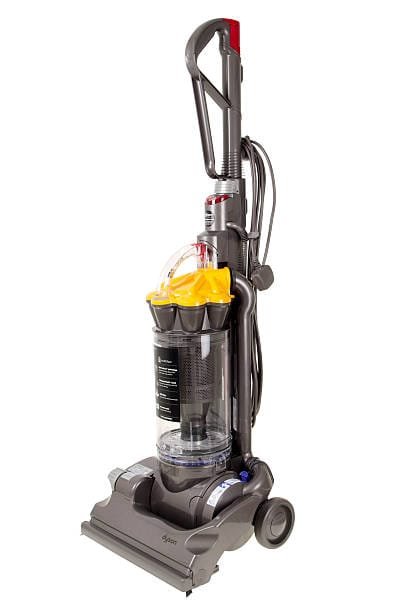
Checking the design features of your Dyson vacuum helps identify the model quickly. Each type has distinct shapes and colors. These details make it easier to tell which Dyson vacuum you own.
Identifying Ball Vs. Stick Vacuums
Dyson Ball vacuums have a round, ball-shaped base. This ball helps the vacuum turn smoothly. The handle usually attaches to a long tube with a wide cleaning head.
Stick vacuums are slim and lightweight. They have a straight stick design without a large base. The cleaning head is smaller and often cordless. This design suits quick cleaning and tight spaces.
Spotting Unique Color Schemes
Dyson uses specific colors for different models. Ball vacuums often have bright colors like red or purple. Stick vacuums may use silver, blue, or green accents.
Color patterns also help separate older models from new ones. Look closely at the color on the handle and cleaning head. This helps identify the exact Dyson vacuum model you have.
Use Dyson’s Online Resources
Using Dyson’s online resources is a quick way to find out which vacuum you own. The official Dyson website offers tools and guides to help you identify your model. These tools save time and avoid confusion. You get clear and accurate information straight from the source. This section explains how to use Dyson’s support site and enter model numbers for details.
Navigating The Dyson Support Site
Start by visiting Dyson’s official support page. The site is simple and easy to use. Look for the “Support” or “Product Help” section. Here, you can find manuals, parts lists, and troubleshooting guides. Use the search bar to type in your vacuum’s features. The site will suggest related models. This helps narrow down your vacuum type quickly.
Inputting Model Numbers For Details
Check your vacuum for the model number label. It’s usually on the main body or near the dust bin. Enter this number exactly on the Dyson support site’s search box. The system will show the exact product page. This page has detailed info like user manuals and parts lists. This step ensures you get the right support for your vacuum.
Compare With Product Manuals
Comparing your Dyson vacuum with product manuals helps identify its exact model. Manuals contain clear details about features and parts. This makes it easier to match your vacuum with the right model. You can find manuals both online and in print. Checking these details can save time and avoid confusion.
Finding Manuals Online
Dyson offers product manuals on their official website. Use the model number or product name to search. Many sites host PDF versions of these manuals. Download the manual to view detailed information. Some manuals include images and diagrams for easy comparison.
Matching Features And Specs
Look at the vacuum’s shape, color, and attachments. Check the manual for matching features like suction power and battery life. Compare the size and design details carefully. Note special functions or tools listed in the manual. This helps confirm the exact model of your vacuum.
Contact Dyson Customer Support
Contacting Dyson customer support helps identify your vacuum model quickly. Their team has the right tools to guide you. They can answer questions and provide specific details about your vacuum.
Reach out through phone, email, or live chat. Having clear information ready speeds up the process. This ensures you get accurate and helpful answers fast.
What Information To Provide
Have your vacuum’s serial number ready. It is usually on a label under the bin or on the main body. Also, note the purchase date if possible. Describe the vacuum’s color and shape. Mention any unique features or parts. This helps support find your exact model.
How Support Can Assist
Support can confirm your vacuum model using the details you give. They can help identify parts and accessories for your vacuum. They provide tips for maintenance and troubleshooting. Their help ensures you care for your vacuum correctly. They can also guide you on warranty and repair options.
Tips For Quick Identification
Knowing which Dyson vacuum you own can save time and effort. It helps in finding the right parts, accessories, or support. Quick identification tips make this process simple. Use these easy methods to spot your model fast.
Using Visual Cues
Check the vacuum’s shape and size. Dyson models have unique designs. Look at the color pattern and placement of buttons. Some have clear dust bins; others do not. Inspect the brush head style. Each model has a distinct look. These visual hints narrow down your options quickly.
Keeping Model Info Handy
Keep the model number in a safe place. It usually appears on a label or sticker. Often, it is under the dust bin or near the handle. Write it down or take a photo. Store this info on your phone or a notebook. This makes future identification easier and faster.
Frequently Asked Questions
How Do I Find My Dyson Vacuum Model Number?
You can find the model number on a sticker or plate near the vacuum’s handle or dustbin. It usually contains a combination of letters and numbers. This helps identify your exact Dyson vacuum model for parts and support.
What Are Key Features To Identify Dyson Vacuum Models?
Look for unique design elements like cyclone layout, wand shape, and dustbin style. Check if it’s cordless or corded, and note the color scheme. These features help distinguish between Dyson models easily.
Can Dyson App Help Identify My Vacuum Model?
Yes, the Dyson Link app can detect your vacuum model if it’s a smart or connected device. It also provides maintenance tips and software updates tailored to your specific model.
Why Is Identifying My Dyson Vacuum Model Important?
Knowing your model ensures you buy compatible parts and accessories. It helps when troubleshooting issues or seeking customer support. Accurate identification saves time and prevents purchasing errors.
Conclusion
Knowing which Dyson vacuum you own makes maintenance easier. Check the model number on the vacuum body or box. This helps find the right parts and accessories fast. You can also read the user manual for details. Keeping your vacuum in good shape saves time and money.
Now, cleaning feels less like a chore. Simple steps lead to better results every day. Understanding your Dyson vacuum makes home care smooth and quick.